Oracle Fusion - Receipt Corrections – Correct Receipts
Receipt Corrections – Correct Receipts
Receipt correction/return is required to reverse or partially reverse the purchase order receipt.
Users can correct or cancel the receipt. The following process outlines the steps to correct a receipt:
1. Login to your Oracle Fusion account
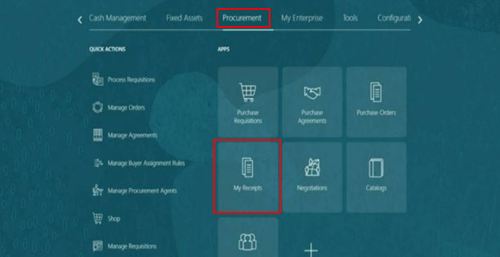
2. Select Procurement tab
3. Select My Receipts – Your homepage may look different depending on permissions
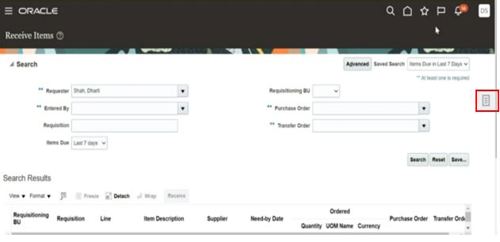
In Tasklist area, select Manage Receipts
4. Enter information to search for receipt or select Advanced to add more search fields
5. Select Search
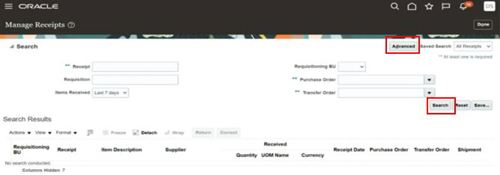
6. Select receipt
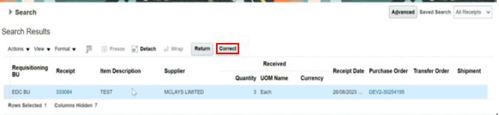
7. Click on Correct
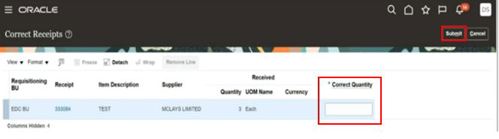
8. Enter correct quantity
9. Select Submit
10. Confirmation is displayed
11. Click OK
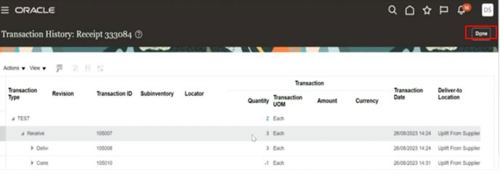
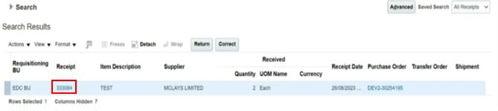
12. Select Receipt number to check transaction history detail
13. Select Done