Oracle Fusion - Purchase Order Amendments
Purchase Orders are automatically created from order requisitions that are approved.
Purchase Order amendments are required to increase or decrease the order amount to match the invoice. Orders may have been raised initially with an estimated amount or an amendment may be required to cover additional work carried out by the supplier against the same order.
The following process outlines the steps to make changes to a purchase order
1. Login to your Oracle Fusion account
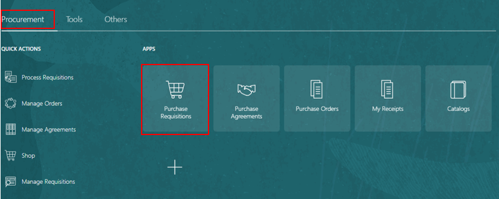
2. Select Procurement tab
3. Select Purchase Requisitions – Your homepage may be different depending on permissions
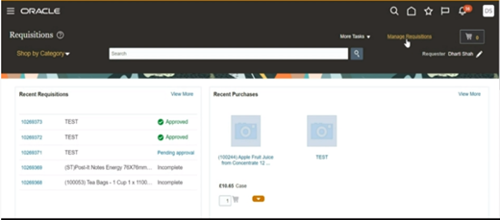
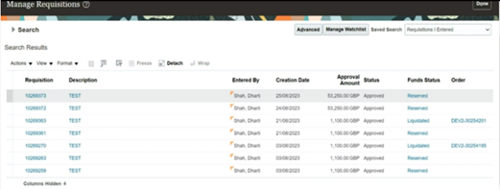
4. Select Manage Requisitions
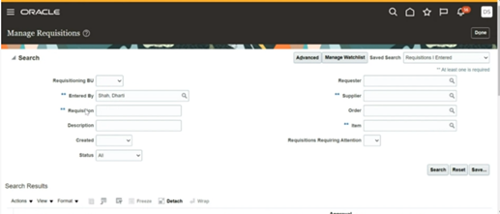
5. Enter search details or click on Advanced to add more search fields
6. Select Search
7. Select requisition line required
8. Check purchase order details
9. Click on requisition hyperlink
10. Navigate to Requisition Lines area

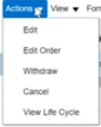
11. Select Actions
12. Select Edit Order
13. A warning will be displayed

14. Select Yes
15. Enter reason for amendment in Description field
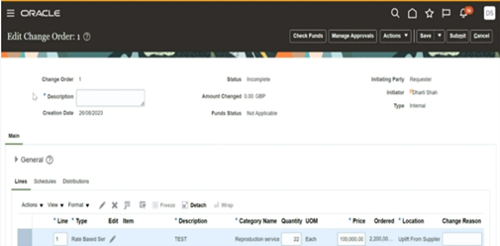
16. Amend details
17. Select Manage Approvals to view approval route
18. Click on Submit
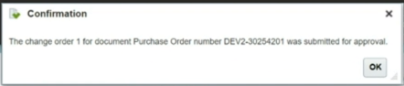
19. Confirmation is displayed
20. Click OK