
Oracle Fusion - Process Requisition, Purchase Order Creation
Users will generate a purchase order for a onetime purchase of items.
The following steps outline the process of creating a purchase order against a raised requisition
1. Login to your account on Oracle Fusion
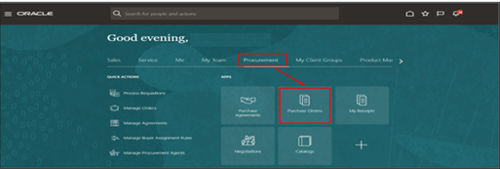
2. Select Purchase Orders
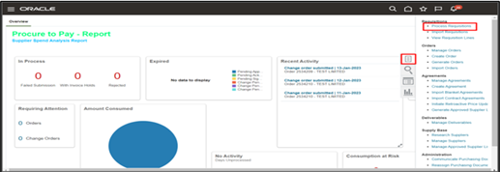
3. Select Task button
4. Select Process Requisition
5. Enter search criteria to see approved requisitions
6. Select Search
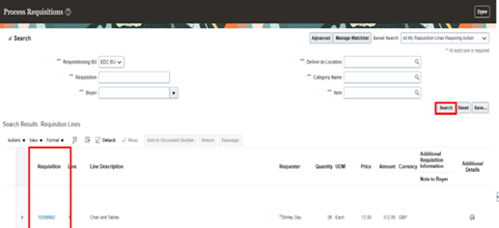
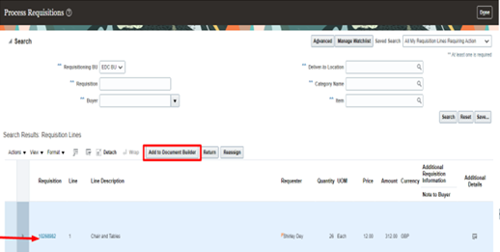
7. Select required requisition line
8. Click Add to Document Builder
9. Complete required fields
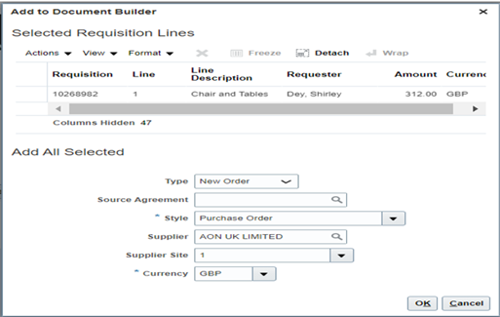
10. Select OK
11. Add requisition lines to the Document Builder
12. Select Create or Edit

13. Once created, a purchase order number is generated
14. Press OK
15. Select Actions
16. Select Validate to review
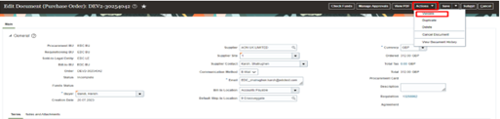
17. Select Manage Approvals to view purchase order approval route
18. Select Submit

19. Confirmation message is displayed