Important announcement

We will be carrying out essential maintenance on our payment system on Thursday, 21 May. During this time, telephone payments and counter payments (Chip and Pin) at our Community Hubs will be unavailable.

Customers can still pay for services and bills online or via our 24-hour Touchtone payment service on 0300 123 4524.

Accounts Receivable invoices and credit memos will be created through the Invoice Request Form.

The following steps will outline how to create a new invoice

1. Log in to your Oracle Fusion account
2. Navigate to Smart Form tab
3. Select Invoice Request Form
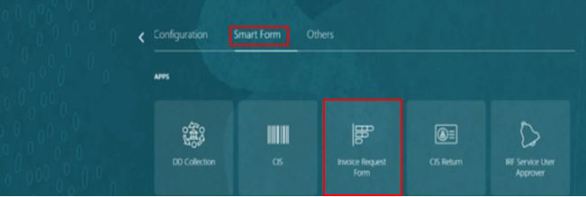
Smart Form tab highlighted red and Invoice request form highlighted red

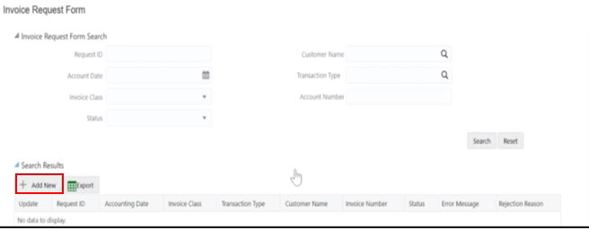
4. Select Add New

Screenshot of the Invoice Request form with the Add New button highlighted red

5. Select Invoice at Transaction Class
6. Click OK
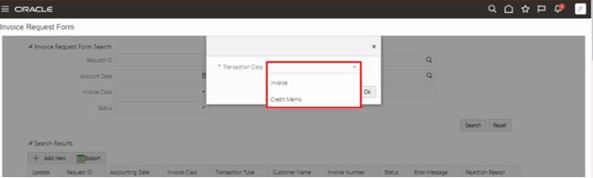
Invoice and Credit Memo options highlighted red

7. Enter required details under General Information
8. Enter required Customer Details
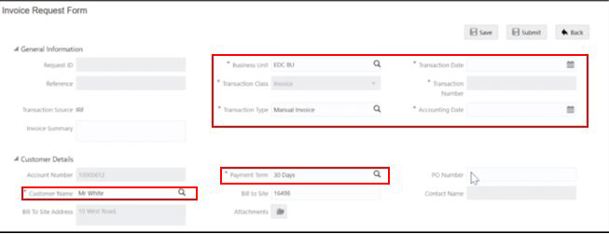
Screenshot of the Invoice Request Form with General info and Customer details highlighted red

9. At Invoice Lines, select Add Lines
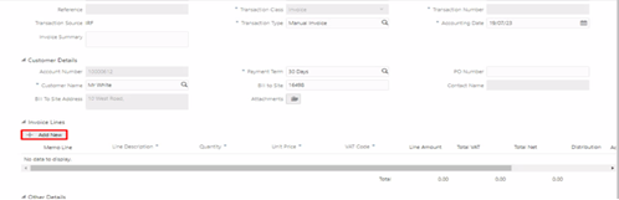
screenshot showing the Add Lines button highlighted red

10. Select Distribution icon to review and edit distribution lines if required
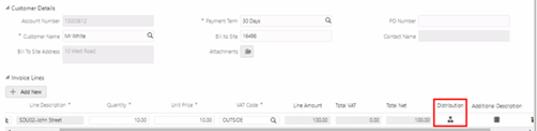
Screenshot of the distribution button highlighted red

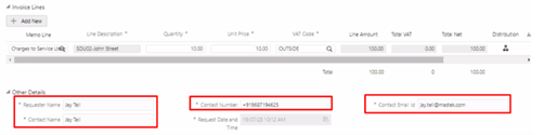
11. Enter Other Details

Other details fields highlighted red

12. Click on Save
13. Select Submit to create invoice

Screenshot of area of screen the save and submit buttons are located